 Log in / Sign in



VISA
Pay securely with Visa. Fast, reliable, and widely accepted for transactions worldwide.


Order professional tuning hardware: DPF/SCR-off emulators and ECU tuning adapters for advanced tuning solutions.
Getting started:
click Log In on the homepage, enter your email, agree to the Privacy Policy, and hit Register. Then check your inbox, open the confirmation link, and create your password - your account will be ready to go.
To choose a device:
go to dl.ge, open Catalog, and select Tuning Adapters. Pick a product, check the details, and click Add to Cart to continue.

To add funds to your wallet:
click the wallet icon, choose Wallet Top-Up, enter the amount, and press Add. On the checkout page, fill in the details, pick your payment method, and complete the payment. Once done, the balance updates automatically and you’re ready to use it.

To complete your purchase:
open your cart, review the order, and click Proceed to Checkout. Fill in the required details, choose a payment method, and complete the payment. Once done, you’ll get a confirmation email with your order details.
Order and delivery:
we’ll prepare your order within 30 minutes after payment and hand it to the courier the same or next business day. Tracking info will be sent to your email or available in your account (may take up to 24 hours). Delivery usually takes 3–5 business days.
Use the Mochester App to access and apply professional tuning solutions remotely. Get tuning solutions delivered directly to your commercial vehicle.
Getting started:
click Log In on the homepage, enter your email, agree to the Privacy Policy, and hit Register. Then check your inbox, open the confirmation link, and create your password - your account will be ready to go.
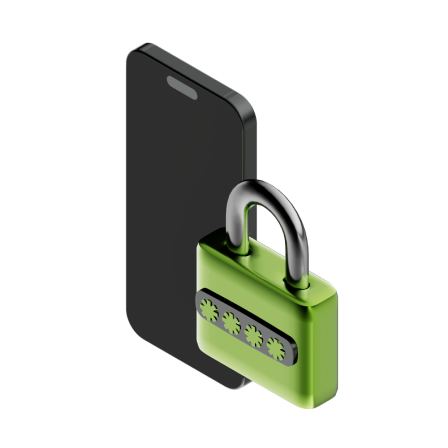
Secure your account with OTP:
set up one-time passwords to protect your account and unlock purchases. Enter your phone number, get a verification code, and confirm it. You can also link WhatsApp by scanning the QR code and sending the code there to finish setup.
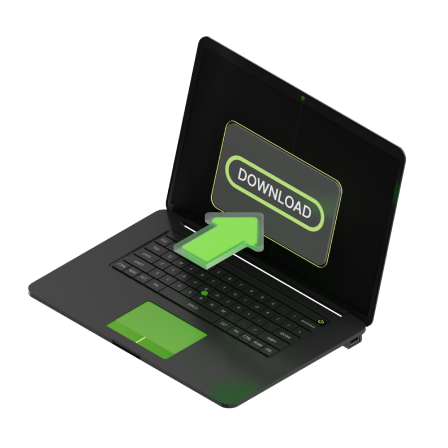
Install and launch the app:
go to Downloads section on the dl.ge website, get the Mochester App, and run the installer. Once installed, open the app, enter your dl.ge credentials, and click Login.
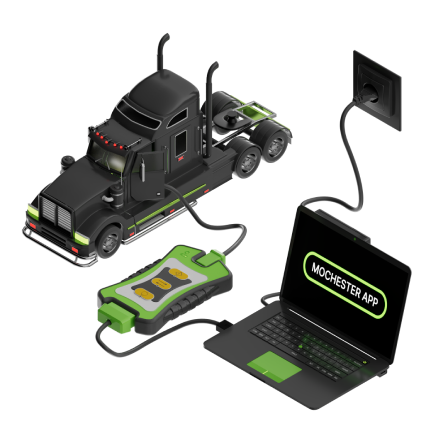
In the Mochester App, tap Start Connecting, review and confirm each step, then wait for the app to identify your vehicle. Once done, you’ll see the interface, VIN, and chassis number-click Next to load all available tuning solutions, then select your desired service.
Go to dl.ge, click the wallet icon, select WALLET TOP-UP, enter the required amount for your chosen solution, press ADD, then complete the payment on the checkout page by filling in your details and selecting a payment method. Then return to the Mochester App.
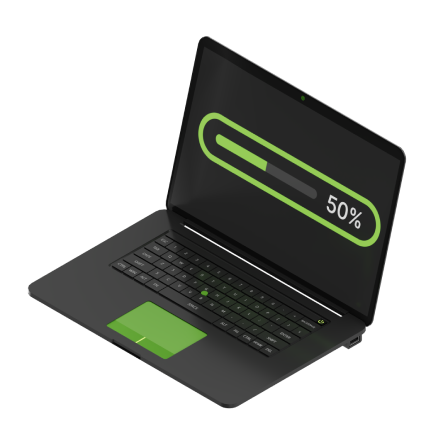
Choose a service:
select one or more tuning solutions and click Next. Confirm the purchase with your one-time password, then wait for the data to download-once complete, the flashing process will start automatically.

Complete your order:
wait for the process to finish while monitoring the progress bar. Once done, you’ll receive a detailed report and can start enjoying all features unlocked through the Mochester App.
Get remote tuning support from our engineers via TeamViewer. Book a session, and our specialist will handle the entire process - from setup to final tuning.
Getting started:
click Log In on the homepage, enter your email, agree to the Privacy Policy, and hit Register. Then check your inbox, open the confirmation link, and create your password - your account will be ready to go.
Schedule a service:
select the service you need. Pick a date and time, enter your vehicle’s VIN, review the requirements, check each box, and click SET Appointment.
To add funds to your wallet:
click the wallet icon, choose wallet top-up, enter the amount, and press Add. On the checkout page, fill in the details, pick your payment method, and complete the payment.
go to Downloads section on the dl.ge website, get the TeamViewer App, and run the installer. Fulfill all equipment requirements for the chosen service.

Before your TeamViewer appointment:
5–10 minutes prior, go to dl.ge, click the 💬 chat button at the bottom left, click Send us a message, and select I have a TeamViewer Appointment. Then, when prompted by Robot Oleg, select or enter your order number.
During and after your TeamViewer session:
once the operator joins, stay available during the tuning, as you may need to follow instructions. When finished, you’ll get a WhatsApp notification and an email confirmation-click View Your Order to see all details in your account.
VISA / MasterCard / PayPal / Other method
Pay securely with Visa. Fast, reliable, and widely accepted for transactions worldwide.

Complete your payment easily using Mastercard. Safe processing with global availability.

Use PayPal for quick and secure payments without sharing your card details. Trusted worldwide.
Additional options may be available depending on your location after login.
Our support team will find the best tuning solutions for your truck via WhatsApp.

We use cookies… By using this website you agree to our Privacy Policy.