Log in / Sign in
On this page you will find step-by-step instructions on how to purchase and perform remote truck tuning via the Mochester App (M4 App).
The Mochester App gives users the opportunity to customize their trucks themselves and enjoy a variety of tuning services based on the chassis number or VIN of truck. The app tuning options are updated regularly for recent accomplishments. In the Mochester App, the most requested services include: DPF delete, EGR delete, and DEF/SCR delete, for common brands like Mack, Volvo, UD and Renault as well as Prevost and Volvo Buses and Penta marine and industrial engines.
Download Instructions
Using the link below, you can download the PDF manual:
Follow the instructions below to purchase tuning services via the Mochester App quickly and easily.
How to Install the Mochester App (M4 App)
Equipment Preparation
-

Laptop or PC: Running Windows (Vista, 7, 8, 10, or 11 supported).
-

Diagnostic Adapter: A USB adapter that supports the RP1210 protocol (such as Nexiq USB-Link, Noregon DLA, DPAS, Inline 6, ScanMatik, etc.).
-

Internet Connection: A stable connection for downloading firmware and communicating with the server.
Download and Installation
-

Go to the official website: dl.ge.
-

Download the Mochester App and install it on your computer by following the installation wizard prompts.
-

Done!
How to Buy a Tuning Solution and Tune Your Truck via the Mochester App
-
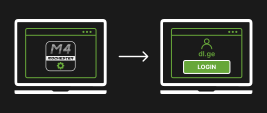
Launch the Mochester App. Enter the credentials you use to register on our website dl.ge and click the login button.
-
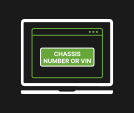
In the home window, you have access to two menus. Check services by chassis number or VIN and start the connection.
-
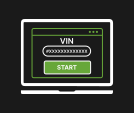
Click the “Start Connecting” button. Wait for the automatic completion of the connection and identification process for your vehicle. *(In case of additional instructions, follow the corresponding steps.)
-
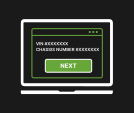
Once finished, the screen will display the connected interface, VIN, and chassis number. Click the next button and wait for the list of all available tuning solutions to load.
-
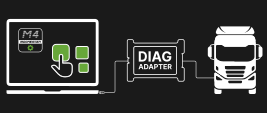
Choose tuning solutions for your truck.
-
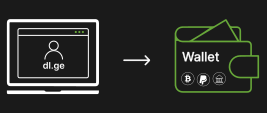
Top up your wallet on dl.ge with the amount required for the chosen solutions. Then return to the Mochester App.
-
Click the next button. Confirm the purchase by entering the one-time password received through one of the available delivery methods. Wait for the data to finish downloading from our server.
-
The flashing process will begin. Wait for the order process to complete (the time will be shown in the progress bar). *(In case of additional instructions, follow the corresponding steps.)
-
Once the order is complete, you will receive a detailed report.
-

Enjoy the results!
Please watch this video to see how to get tuning solutions via the Mochester App.
Warranty
Tuning solutions provided via the Mochester App are covered by warranty. For full details, please visit the official Drunklab warranty page.